Firewall Blocks
To check for a firewall block, you will need to access WHM for the server the client’s account is hosted on.
You will need to get the Client’s IP Address, this can be done by going to ipchicken.com or ipblocked.com (plus various other sites)
Access WHM
In the search field, enter Firewall
Click on ConfigServer Security & Firewall
Look for the Search for IP option, enter the clients IP address in the search field
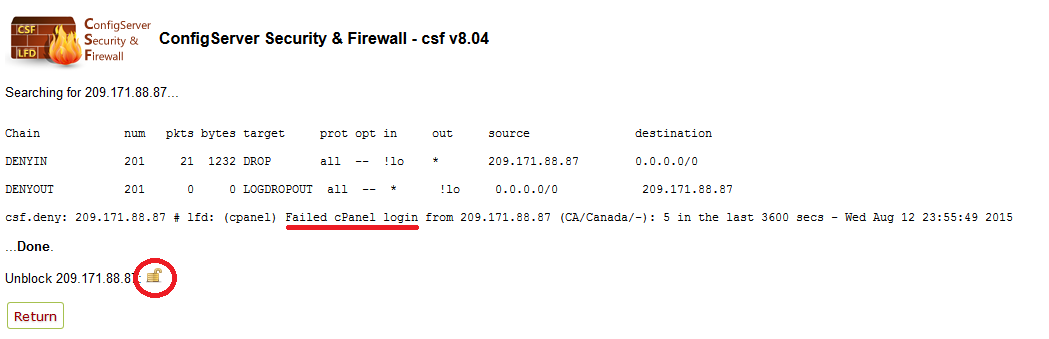
The results will look something like is listed below. In this case, there were multiple failed logins made to webmail, which shows up as a failed cPanel login in the firewall.
There are other reasons that the IP could be blocked such as: failed POP/IMAP/SMTP logins, failed FTP/SSH logins
The padlock lower on the page will allow you to unlock the IP address and remove the block.
An IMAP block will look like the screenshot below
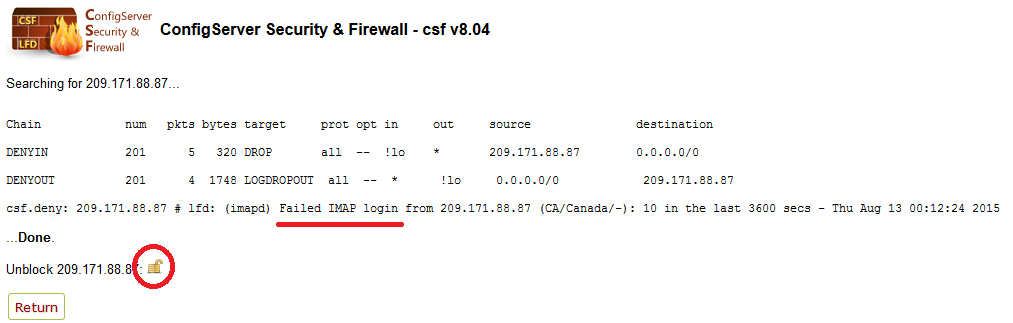
After clicking the padlock to unblock, click on the return button
On the main page for ConfigServer Security & Firewall, there will be a Search System Logs button (4th option from the top). Click on this.
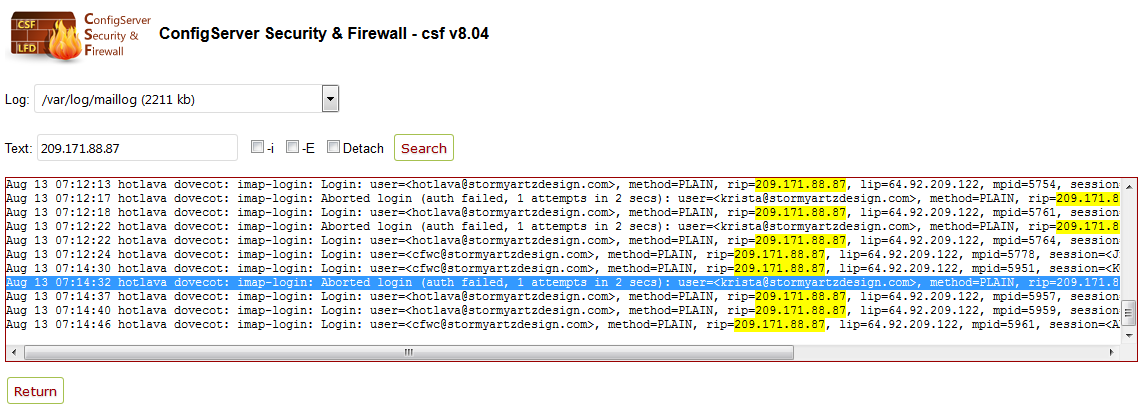
In here, set the dropdown menu to maillog (as seen below) and enter the IP address in the Text field.
The highlighted line shows that there was a failed login attempt on krista@stormyartzdesign.com.