
cPanel Overview
We will start first by overviewing the interface of the Cpanel layout and those features.
You will notice in the upper left corner there is navigation button “Home” that is used when actioning the return to the home page of the Cpanel. Also located at the top of the screen in the right hand corner is the “Help” and Logout” options.
Running down the left hand pane of the page is “Notices” area where web hosts can alert there clients to information pertaining to their services. Below this you will find a quick search link for finding features within the Cpanel. Below this again is a list of frequently used areas or bookmarked areas of the Cpanel as per the client and the use history.
The “Stats” area is one we use in our support techniques for flagging a lot of quick information that could assist us in resolving issues the client may be having, so watch this area for any quota issues, availability features, etc.
- Primary domain – This shows what the primary domain is on the account your currently accessing.
- Home directory – The directory within the file structure of the account you are currently accessing.
- Last login from – This shows the ip address that last accessed this account.
- Disk space usage – This shows the current accounts disk space quota and the current amount used. This is a good area to look when seeing upload or mail issues, because if they have no more room available those capabilities would be unfunctional as the information being transferred has no where to go.
- Monthly Bandwidth transfer – This shows again the quota available for the account package, and the currently used as well.
- Email accounts – This show how many emails account the package offers and how may currently being used.
- Parked domains – This shows the amount of parked domains available for the package, and how many are currently in use.
- Sub-domains – This shows the amount of sub-domains available for the package, and how many are currently in use.
- Add-on domains – This shows the amount of add-on domains available for the package, and how many are currently in use.
- FTP accounts – This shows the amount of ftp accounts available for the package, and how many are currently in use.
- Mailing lists – This shows the amount of mailing lists are available for the package, and how many are currently in use.
- All SQL databases – This shows the amount of SQL databases are available for the package, and how many are currently in use.
- MySQL databases – This shows the amount of MySQL databases are available for the package, and how many are currently in use.
- Mailing list disk space – Amount of disk space being used on the account for mail list storage.
- Hosting package – The name of the hosting package type this account is using is listed here.
- Server name – The name of the server is listed here in which this account is hosting on.
- Cpanel version – The current version Cpanel is running on.
- Theme – The theme type of Cpanel this account is on.
- Apache version – The version of Apache for the server this account is on.
- PHP version – This shows the current version of PHP running on the server this account is on.
- MySQL version – This shows the current version of MySQL running on the server this account is on
- Operating system – the OS type used for this Cpanel layout
- Shared ip address – The ip address of the server the account is hosted on
- Path to send mail – directory where the send mail is located
- Path to Perl – the directory which Perl is kept
- Perl version – the current version of Perl on this server
- Kernel version – the current versionof Kernel on server
- Cpanel Pro – the Cpanel layout type being used currently
- Server Status – this shows the status of the server ( should it be down or any alerts related ( not always used by providers as an alert system)
Preferences Section
In this section of the Cpanel access you will see some general features listed here such as Getting Started tips, and Video tutorials on how to manage your services via the Cpanel interface.
These would be good to review on your own as they do offer further explanation on the services and features.
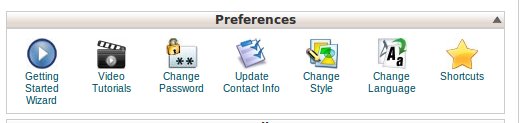
Change Password – This area allows the client to change there own Cpanel login password themselves. There is a password generator tool held within this feature which will ensure security if you are unable to create a password that is secure enough.
Architecture– type used for this account
Change Language – In this area you can select your language preferences that the Cpanel is written.
Shortcuts – Allows the client to create a shortcut to the Cpanel access on there own operating system or browser through bookmarking for simplicity reasons.