
cPanel: Mail Heading
Mail Section
In this section you can manage your mail accounts required for your domain.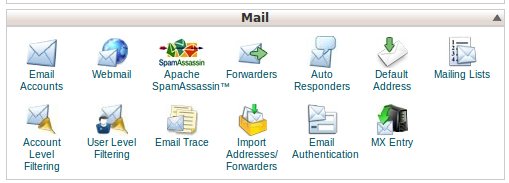
Add/Remove Email Accounts
In this feature you have the ability to create new mail accounts (with all domains/and sub-domains on the account). You can also view the currently used email accounts and manage those (eg: password changes, quota changes, delete the account, webmail quick link, and view email configuration settings). Also notice there is auto configuration scripts to setup mail account in a variety of applications.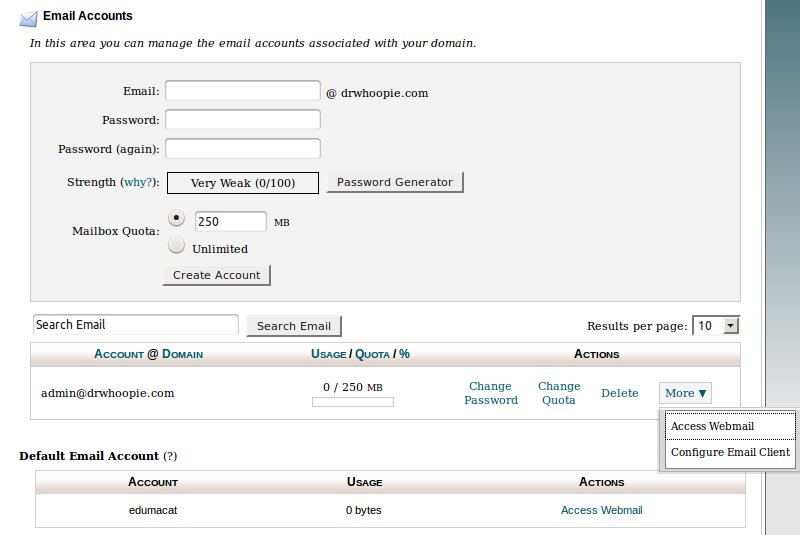
Default mail account access and management is also located in this section. You can view the quota used by the account and a quick link to access it’s online webmail. (Note that the login for the default account or catchall as most refer to this as is the same login settings as the accounts Cpanel login).
Email Configuration Settings
Email configuration settings usually work by following the basic incoming and outgoing mail settings of mail.domainname (eg: mail.bowseranana.com), however those accounts can also use the name of the server the accounts or hosting package are hosted on. Most usually require authentication on the outgoing mail server, meaning to send mail you require the login information of the email account. Those email login details are normally the username being the full email address (eg: stuff@bowseranana.com), and the password associated with the account. It is best to check the email configuration settings in the Cpanel here to ensure what formats are used by that web hosting provider. Also make note of when using ssl on the incoming, and outgoing mail servers that those settings can reflect your port numbers, and the server name you can use for proper setup. SSL is basically increased security for your email interactions.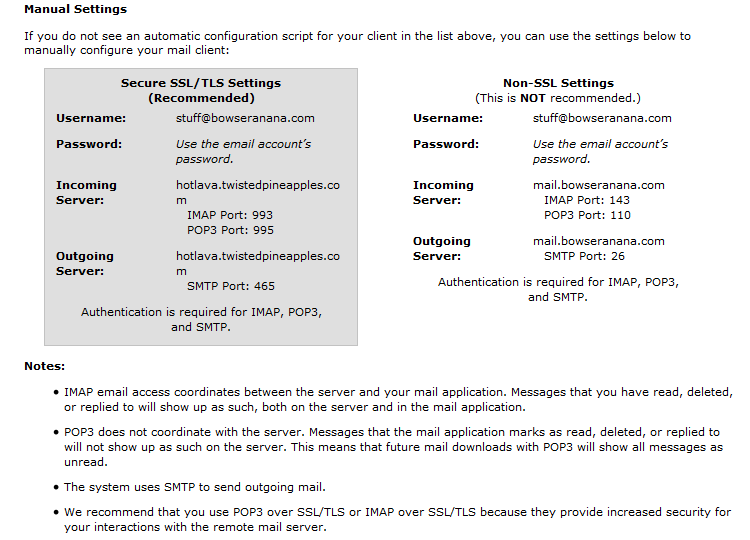
Different email account types and their differences in how they work and are setup :
POP3 Server Settings :
POP3 does not coordinate with the server. Messages marked as read/deleted/replied to in the mail application will not show up as such on the server. This means that future mail downloads with POP3 will show all messages as unread.
Username : stuff@bowseranana.com
Password: Use the email account’s password.
Incoming/Outgoing mail server: mail.bowseranana.com or servername.
Incoming port : 110
SMTP Port : 587
SMTP requires authentication
IMAP Settings :
IMAP email access coordinates between the server and your mail application. Messages that have been read/deleted/replied to will show up as such, both on the server and in the mail application.
Username : stuff@bowseranana.com
Password: Use the email account’s password.
Incoming/Outgoing mail server: mail.bowseranana.comor servername.
Incoming Port : 143
SMTP Port : 587
SMTP requires authentication
SSL POP3 Settings :
Username : stuff@bowseranana.com
Password: Use the email account’s password.
Incoming/Outgoing mail server: Can only be the server name when using the SSL setting as this is using the servers security and using mail.domainname would cause conflicts and for the connect to fail.
Incoming port : 995
SMTP Port : 465
SMTP requires authentication
SSL IMAP Settings :
Username : stuff@bowseranana.com
Password: Use the email account’s password.
Incoming/Outgoing mail server: Can only be the server name when using the SSL setting as this is using the servers security and using mail.domainname would cause conflicts and for the connect to fail.
Incoming port : 993
SMTP Port : 465
SMTP requires authentication
Webmail
Webmail is the online interface to view and manage you email messages. This is a way for clients to check their mail without having access to those devices or systems they have the account setup on. Urls to access this usually follow domain name /webmail (eg: serversitters.com/webmail), however this depends on the server setup and again it is best to check the accounts settings to access this. Other paths may be : webmail.serversitters.com or mail.serversitters.com.
Logging in
Clients have access to login to their webmail through quick link in the Add/Remove Email Accounts section in the “More” area.
They can also load the login through a browser url as indicated above and will have a login screen like the one depicted below:

Once logged in clients are given a few interfaces of webmail that they can choose from. As long as some mail account management options they have in Cpanel …. this is great for employees of clients to manage there own mail account yet not have full access to the Cpanel and the many options offered there in which a rookie could do more harm then intended. Notice once a client chooses an interface they prefer they alos have the option here to enable auto load for that so to skip this page during webmail access.

Spam Filtering – Different hosts offer different spam filtering to their clients for filtering out the unwanted email. Spam filters normally give you a variety of options for managing those spam messages, like choosing how to treat them, trash forward to another mail account, or simply just flag them as spam.
Spam Assassin
SpamAssassin is an automated email filtering system that attempts to identify spam messages based on the content of the email’s headers and body. It works by automatically deleting messages marked as spam according to the number of hits ( which the client sets that works on a scoring of 1-10) required before mail is considered spam. Spam Assassin also gives the client the option of deleting the spam, or delivering them to a spam folder on those mail accounts. Of course like most other filtering services the client can alos whitelist and blacklist email accounts and domains as well.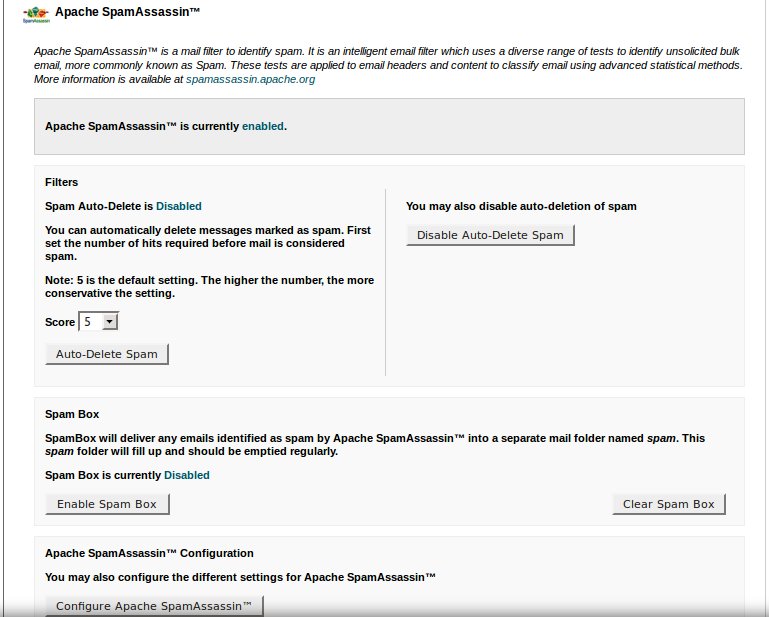
Forwarders
Forwarders are simply just that. Should you want any mail coming into one address to also deliver a copy to another email account, you will require a forward to be created. Setting up a forwarder does not require a mail account to be created first depending on how you want the forwarding to work. If you want mail to go to the primary email account and to the forwarded email account both, then both email accounts need to exist. However, if you just require any mail coming to an email address (such as a past employees), to now forward to another email account of the person replacing that person then you can delete the past employees mail account, and just have the forward created to the new employees account. That way only one mailbox receives those messages, ensuring the client is not using up any disk space un-needed with both mailboxes carrying the same mail.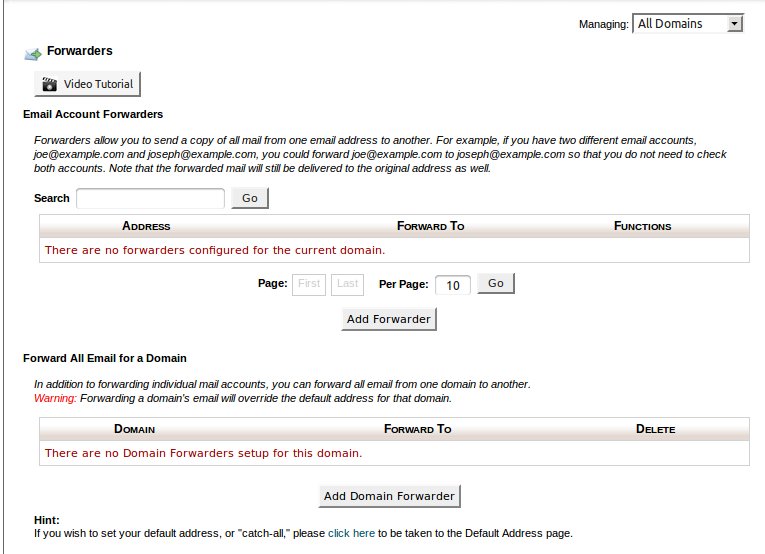
Auto Responders
An auto responder is used for a variety of reasons. Most commonly, and also for a great example is if a person was going away on vacation they can create an auto responder which will automatically reply to each email received to their email account that they are away and will not be back until a certain time. This way the sender is aware and is not expecting any immediate response. Those auto responders can also be tweaked to only send the automatic response after so long of receiving a prior message from that same sender. (eg: If test@abc.com sends several messages to test@123.com five minutes apart between each message, and test@123.com has an autoresponder set to interval of 1 hour, the sending address test@abc.com will get an automatic response on the first message sent, but not the rest until one is received more than an hour past the time the first message was sent).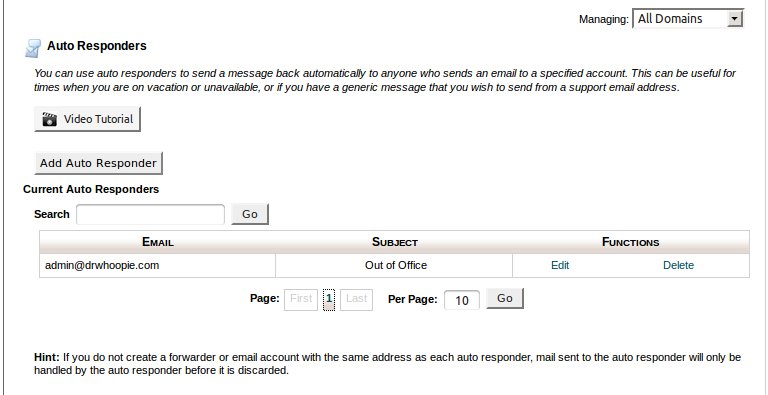
Setting up an Autoresponder: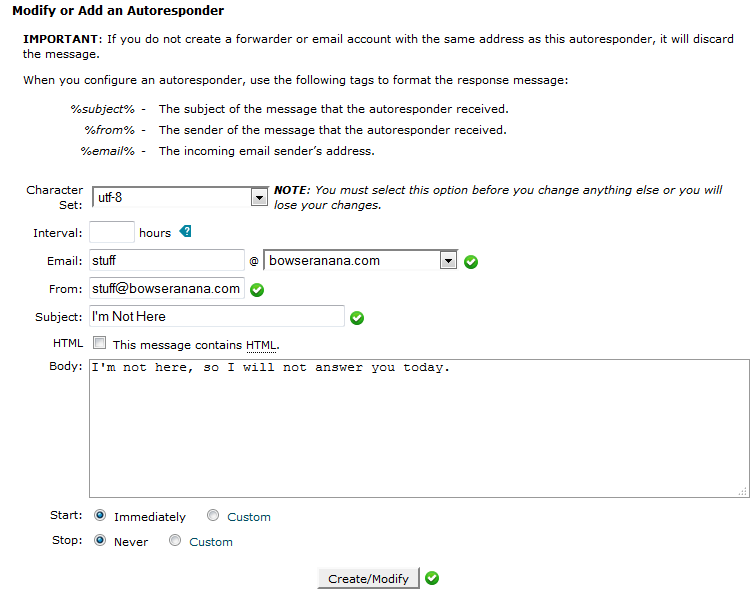
Default Address / Catchall
This email account is the default account to which all mail sent to the domain (eg: serversitters.com) to any email address not currently created on the domain. The default or catchall address can be configured to do a number of actions with those messages (eg: delete, mark as spam ( which creates a tag in the first part of the subject line of the email “SPAM”, forward to another email address, save in the default account, or even pipe or send to a program located with the accounts file structure).
Mailling Lists
Mailing lists are a way to more efficiently send mail to a large group in one email address selection. (eg: if you have a mailing list created as “staff” and in this list you have all email addresses for each staff member you can simply send an email to staff@ and all staff members email accounts will receive the email without the sender having to type out each email recipient individually.

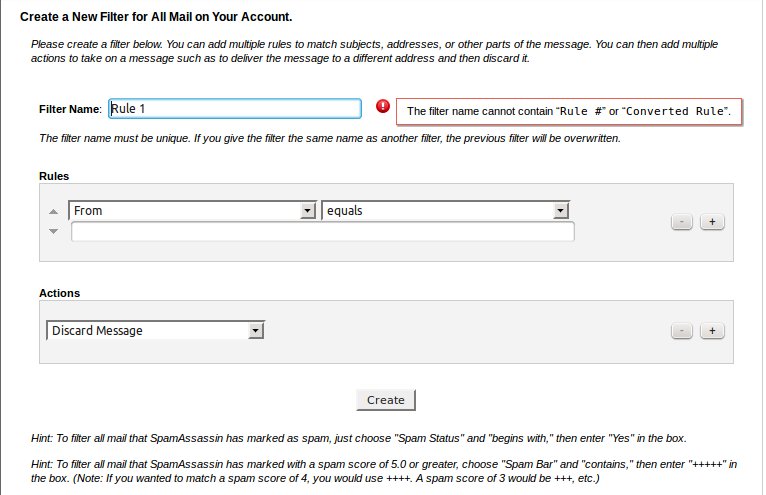
Account Level Filtering
This is to set spam filtering rules for the entire account email accounts. You can have a number of filters in place to deal with certain domains, email addresses or subject lines attempting to send to the accounts email addresses.
User Level Filtering
This is to set spam filtering rules for individual email accounts. You can have a number of filters in place to deal with certain domains, email addresses or subject lines attempting to send to the accounts email addresses.
The management area for these filters are the same as managing the account ones as noted above.
Email Trace
This feature allows you to review email delivery attempts for your account. You can see details of each delivery attempt, including whether a message was delivered successfully. This is a great troubleshooting tool for tracking missed mail, or finding out why it was filtered.
Import Addresses/Forwarders
This feature allows you to use 2 types of files to create multiple email address or email forwarders for your account simultaneously. Excel spreadsheet files (.xls) or comma-separated values sheet, aka CSV file (.csv).
Email Authentication
Email authentication helps prevent spam. Enabling these features should reduce the number of failed delivery notifications you receive when spammers forge messages from your domain(s). These features also work to prevent spammers from forging messages that claim to be from your domain(s). This is done by implementing dns records on the domain in question called DKIM or SPF. We have covered those in the DNS section of the training.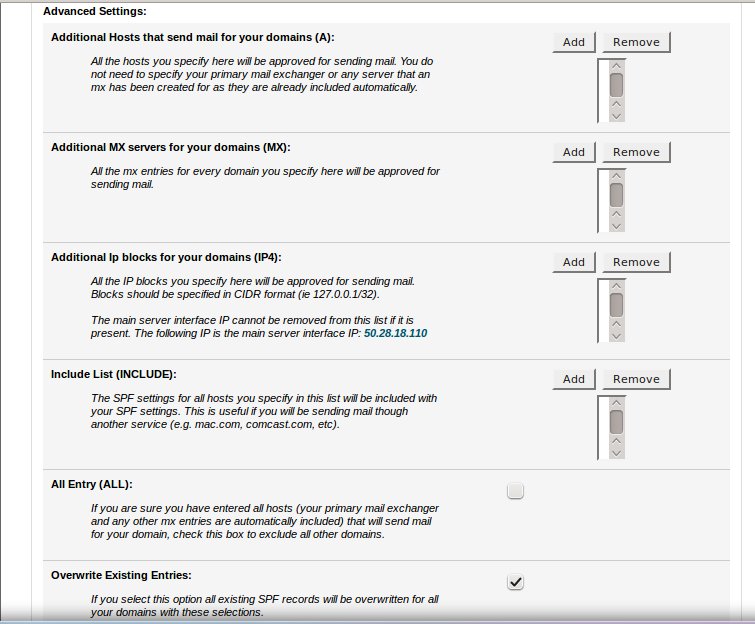
MX Entry
An MX (mail exchanger) entry tells a client which server receives mail sent to a domain name. We can configure this to automatically detect the server, to look locally on the domains hosted server, to look remotely off the domains hosted server, or to point to your backup mail exchange server. This is a good feature to check to ensure it matches the actual mail server location.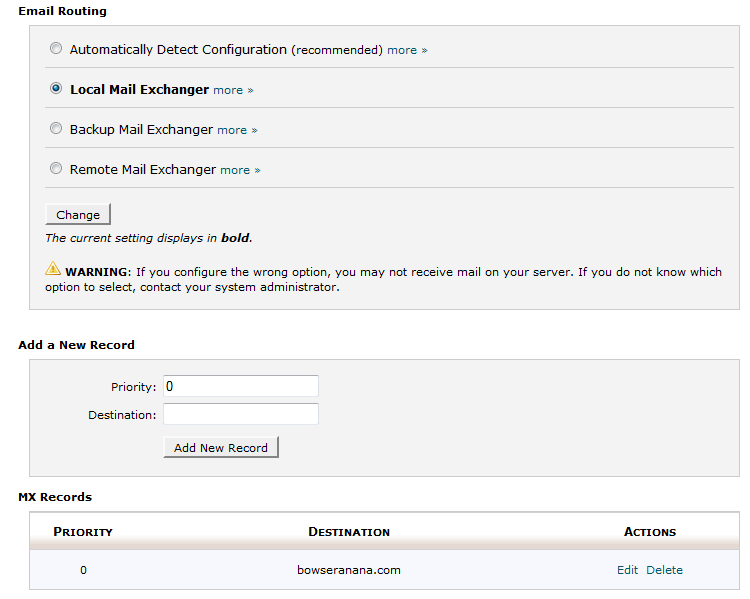
Bounce back messages
Bounce back messages are the messages the sender receives when a message is unable to deliver to the recipient successfully. Those messages contain valuable information in determining the issue, so lets examine the more common types:
- blacklisting – mxtoolbox.com
- recipient doesn’t exist
- blacklisting
- spam filtering
- quota issues – disk space quota, server limits quotas , mailbox quota